Apple Intelligence
Generate privately on a compatible Mac. Repository content stays on the device, and generation can work offline.
OpenAI
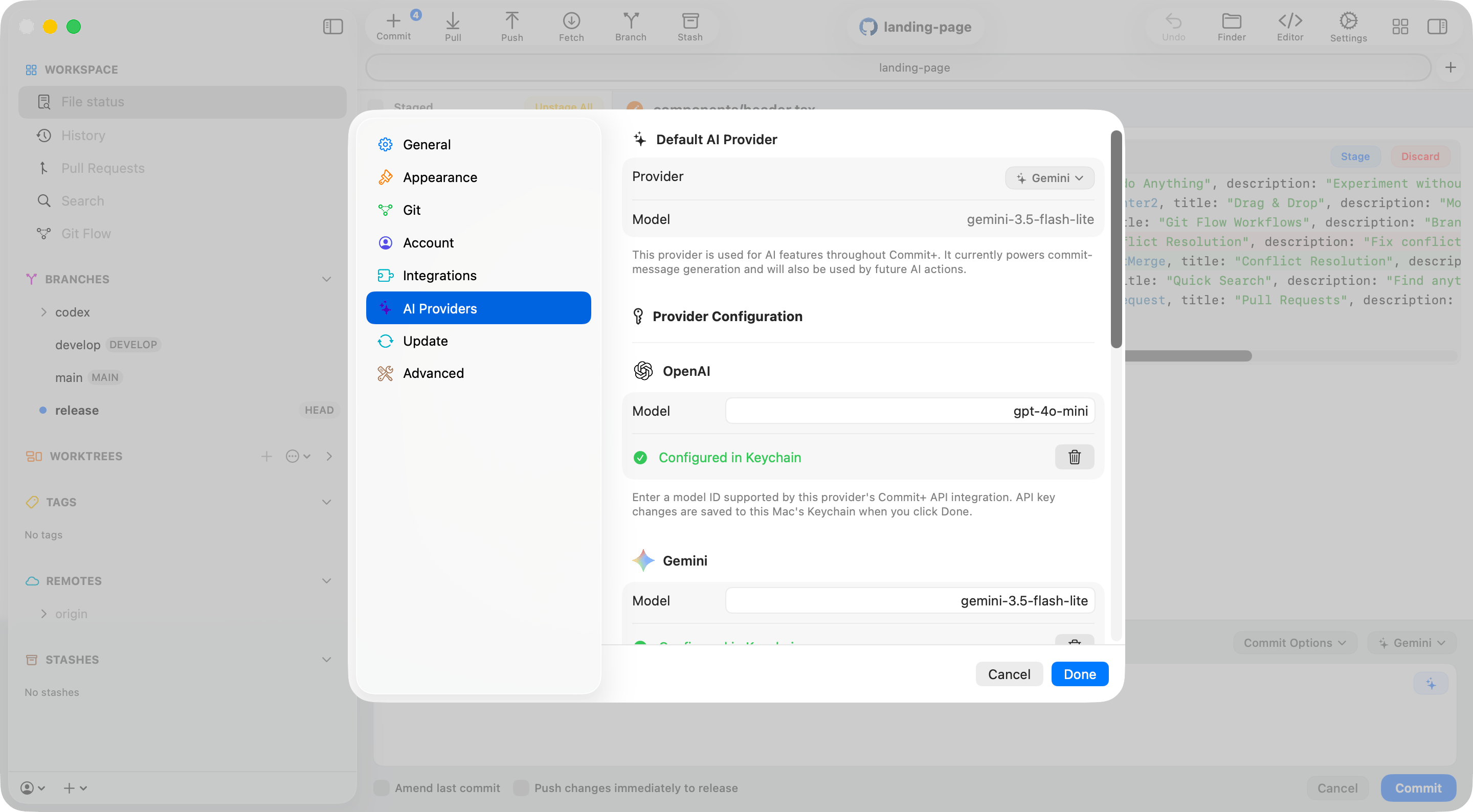
Generate with GPT-4o mini using an OpenAI API key stored in your Mac’s Keychain.
Claude
Generate with Claude Haiku 4.5 using an Anthropic API key stored in your Mac’s Keychain.
Gemini
Generate with Gemini 3.5 Flash-Lite using a Google AI API key stored in your Mac’s Keychain.
DeepSeek
Use DeepSeek V4 Flash with a DeepSeek API key stored in your Mac’s Keychain.
Groq
Use Llama or GPT-OSS models hosted on Groq with a Groq API key stored in your Mac’s Keychain.
OpenRouter
Use OpenRouter’s Auto Router, or configure another OpenRouter model, with an API key stored in your Mac’s Keychain.
ChatGPT
Sign in with a ChatGPT Plus or Pro plan instead of an API key.
ChatGPT (Codex)
Sign in with any ChatGPT account, including Free, to use its Codex usage.
GitHub Copilot
Sign in with GitHub to use your Copilot plan, including Copilot Free.
Generate a commit message
- Open the commit bar and choose a provider from the provider menu.
- Click the Generate commit message button.
- Review and edit the generated message before committing.
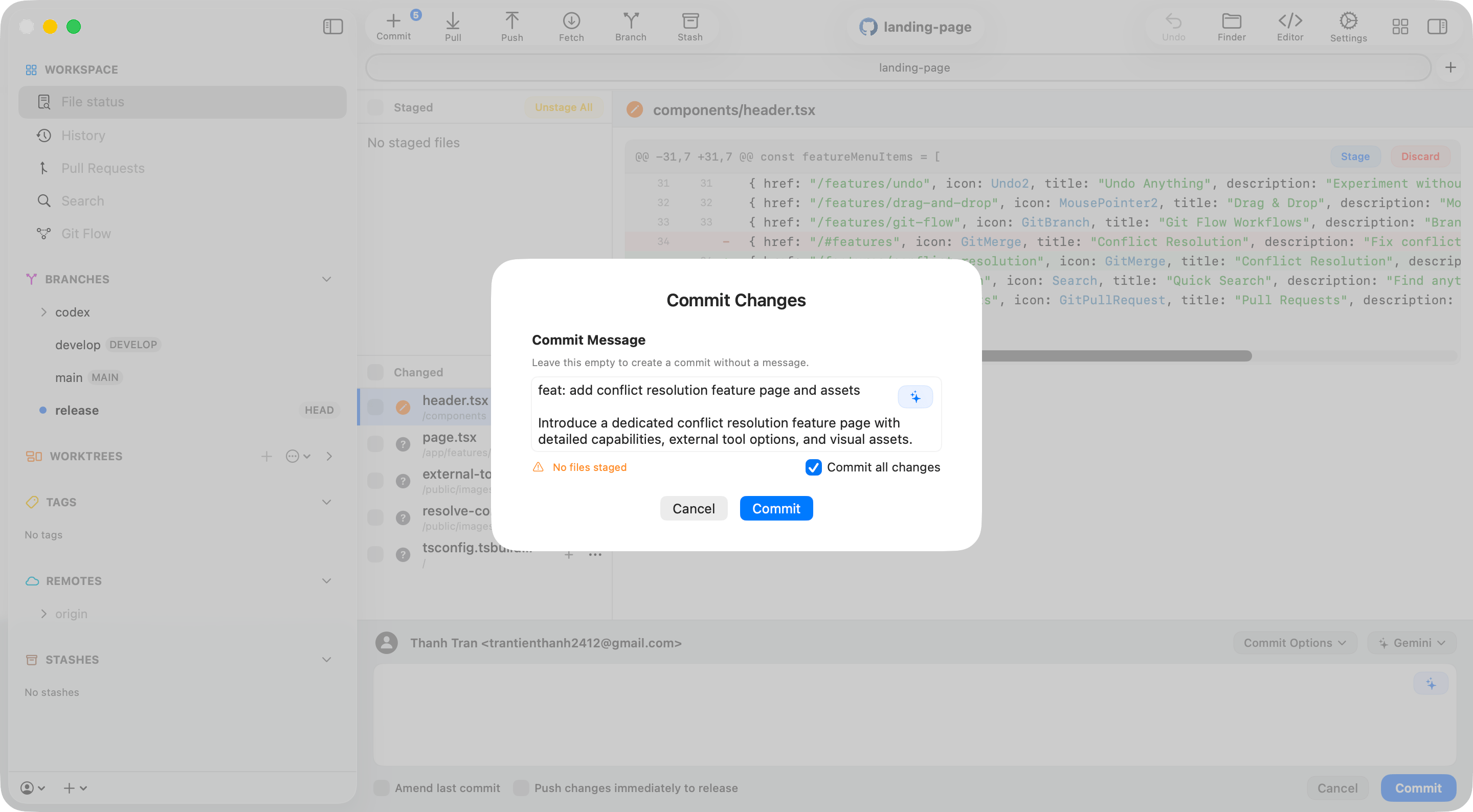
feat:, fix:, refactor:, or docs:. Commit+ uses the current branch, changed-file metadata, a bounded patch, and recent commit subjects to make the wording specific and consistent with the repository. If files change while generation is in progress, the stale result is rejected instead of replacing the editor contents.
Review changes and explain commits
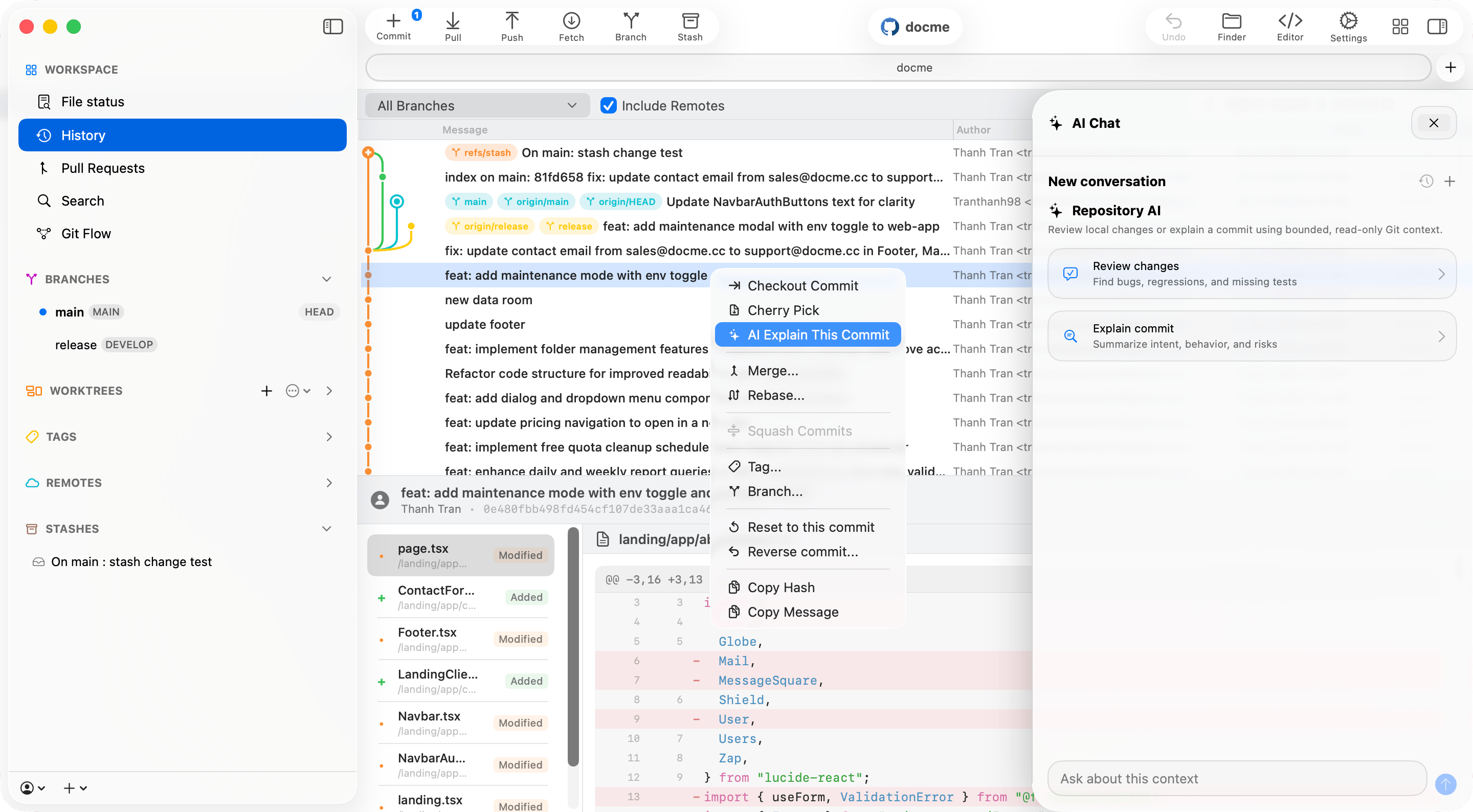
Open Repository AI Chat from the repository toolbar. The panel provides two focused starting points:- Review changes asks the selected provider to inspect current working-tree changes for concrete bugs, regressions, security issues, and missing tests.
- Explain commit lets you choose one of the ten most recent commits or enter a commit hash, branch, tag, or
HEADreference. The response summarizes intent, behavior, and review risks.
Resolve conflicts with AI
Open the conflict workspace and click Resolve all conflicts with AI . Commit+ sends each supported text conflict to the selected provider, validates the returned plan, writes the resolved result, runs Git’s whitespace checks, and stages the file. If the available repository context does not support a safe choice, Commit+ pauses and asks for the decisions it could not determine. Select an answer for every question, then click Apply Answers. You can dismiss the questions and continue resolving manually at any time. AI conflict resolution supports UTF-8 text files containing Git conflict markers. Binary files, other encodings, oversized contexts, or files that change while the request is running remain available for manual resolution. Commit+ also rejects plans that leave conflict markers or do not resolve every conflict block.Configure a cloud provider
Open Settings → AI Providers and click Add Provider…. Choose OpenAI, Gemini, Claude, DeepSeek, Groq, or OpenRouter, enter the provider API key, pick a suggested model or choose Other… to enter any model ID the provider supports, then click Save. Use Edit… or Remove… on a configured provider to change its key or model. Return to the repository and select the configured provider.Sign in with a ChatGPT or Copilot plan
ChatGPT, ChatGPT (Codex), and GitHub Copilot connect to an account you already have instead of an API key. Add them from Settings → AI Providers the same way, then sign in:- ChatGPT — Click Continue with ChatGPT and finish signing in in your browser. It uses your ChatGPT Plus or Pro plan. If the wrong browser profile opens, use Copy Link and open the link in the right one. When you sign in again, Commit+ offers to continue with the previously registered account or Use Another Account.
- ChatGPT (Codex) — Works with any ChatGPT account, including Free, and uses its Codex usage. This connection signs in through the Codex CLI’s client and identifies its requests as the Codex CLI. OpenAI does not support this interface, so it is labeled Unofficial: it may stop working at any time, and you must confirm I understand the risks before connecting.
- GitHub Copilot — Click Sign In with GitHub, enter the displayed code on GitHub, then return to Commit+. The model list shows the chat models your Copilot plan includes; Auto lets GitHub choose. Commit+ downloads GitHub’s Copilot language server on first use. The language server sends usage telemetry to GitHub unless you turn off Send usage telemetry to GitHub in the provider’s privacy settings.
Thinking
The Thinking toggle in Settings → AI Providers lets models that support reasoning think before answering. It applies to every cloud provider you configure; Apple Intelligence and Commit+ AI are not affected. Thinking is off by default. When it is off, Commit+ disables thinking where the model allows it, or uses the lowest reasoning level on models that always think. Responses with thinking on take longer and use more tokens.