

Connect your server
- Open Settings → Account and find Git Provider Accounts.
- Click Add, then select GitHub or GitLab.
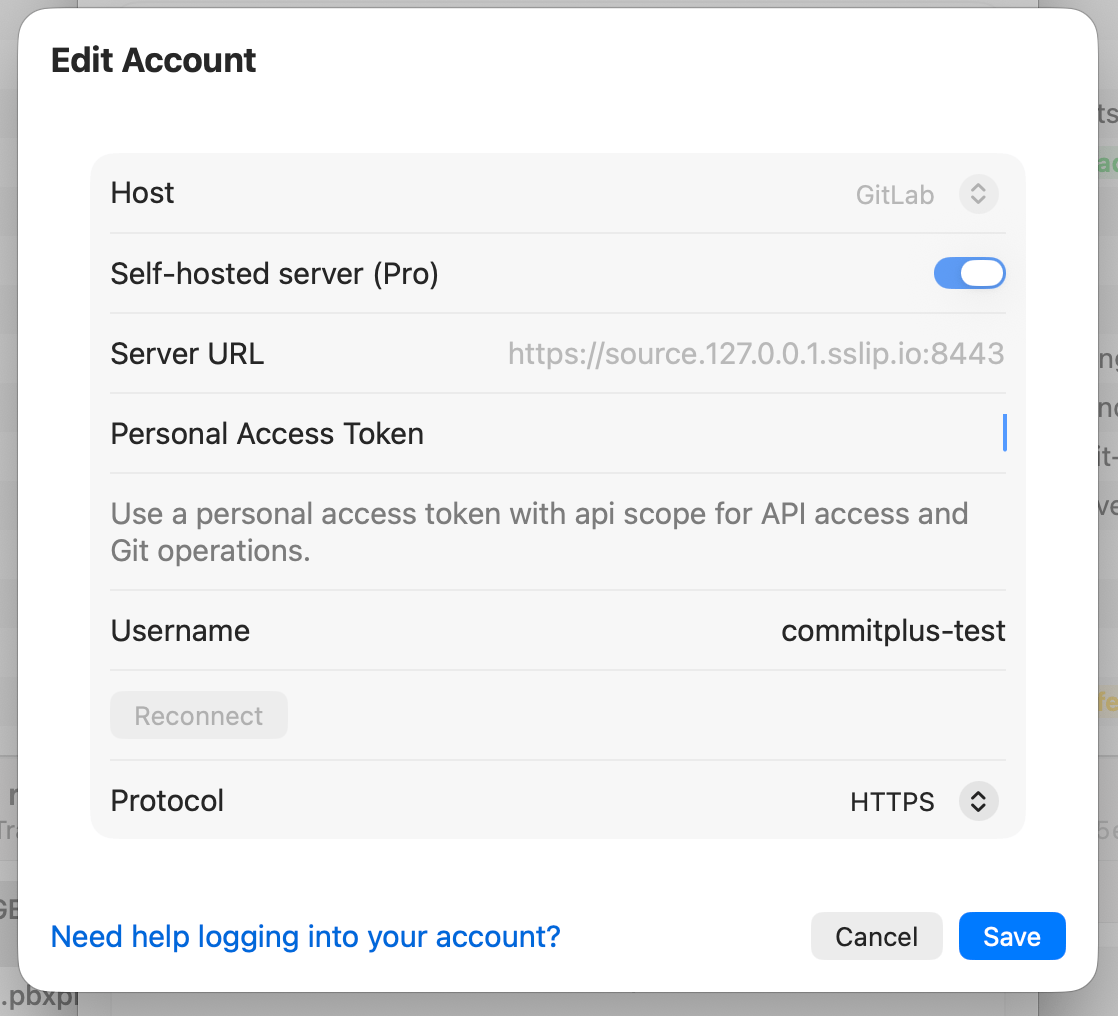
- Enable Self-hosted server (Pro).
- Enter the server’s HTTPS URL, including a custom port or installation subpath when required.
- Keep HTTPS selected, enter a personal access token, then click Connect Account.
- After Commit+ displays the connected username, click Save.
- GitHub Enterprise Server:
https://github.company.com - GitLab Self-Managed:
https://gitlab.company.com - GitLab with a custom port or subpath:
https://source.company.com:8443/gitlab
Personal access token permissions
Your token must be able to access the repositories and API actions you want to use.- GitHub Enterprise Server
- GitLab Self-Managed
A classic personal access token with the
repo scope covers private repositories. Add the workflow scope if you need to push changes to GitHub Actions workflow files.Fine-grained token support and available permissions depend on your GitHub Enterprise Server version and administrator policy.Use self-hosted repositories
After connecting an account, Commit+ routes supported workflows to its configured server:- Browse repositories from the Clone window under Browse connected repositories.
- Clone private repositories over HTTPS using the matching stored credential.
- Fetch, pull, and push without entering the token again.
- Load remote branches and repository visibility.
- Browse pull requests or merge requests and use the supported PR/MR actions.
- Read branch protection information when the server and token expose it.
Use SSH for Git operations
You can select SSH, choose a private key, and test it against the configured hostname. Commit+ respects your SSH configuration, including host aliases and custom SSH ports.SSH authentication covers Git transport only. Keep an API token on the account if you also want repository discovery or pull request and merge request features.
Security and account changes
Personal access tokens and SSH keys stay in the local macOS Keychain. Commit+ does not disable HTTPS certificate validation. To rotate an expired or revoked token, edit the provider account, enter the replacement token, click Reconnect, then save the account. Connecting or reconnecting a self-hosted server requires an active Commit+ Pro plan.Troubleshooting
Commit+ cannot reach the server
Commit+ cannot reach the server
Check the full server URL, DNS, network connection, and company VPN. Include any required HTTPS port or installation subpath.
The server certificate is not trusted
The server certificate is not trusted
Install and trust your organization’s certificate in macOS Keychain. Commit+ requires normal HTTPS certificate validation.
The token is invalid or expired
The token is invalid or expired
Edit the account and reconnect with a replacement personal access token.