How Commit+ detects a potential conflict
- Commit+ finds the branch that can update the current branch. It uses the configured Git Flow base branch when applicable; otherwise it uses the remote’s default branch.
- When that branch has commits the current branch does not, Commit+ asks Git for incoming changed paths and checks whether Git predicts merge conflicts at the branch level.
- A locally changed file receives a warning when it is also changed by the incoming branch, or when Git already predicts a merge conflict for it.
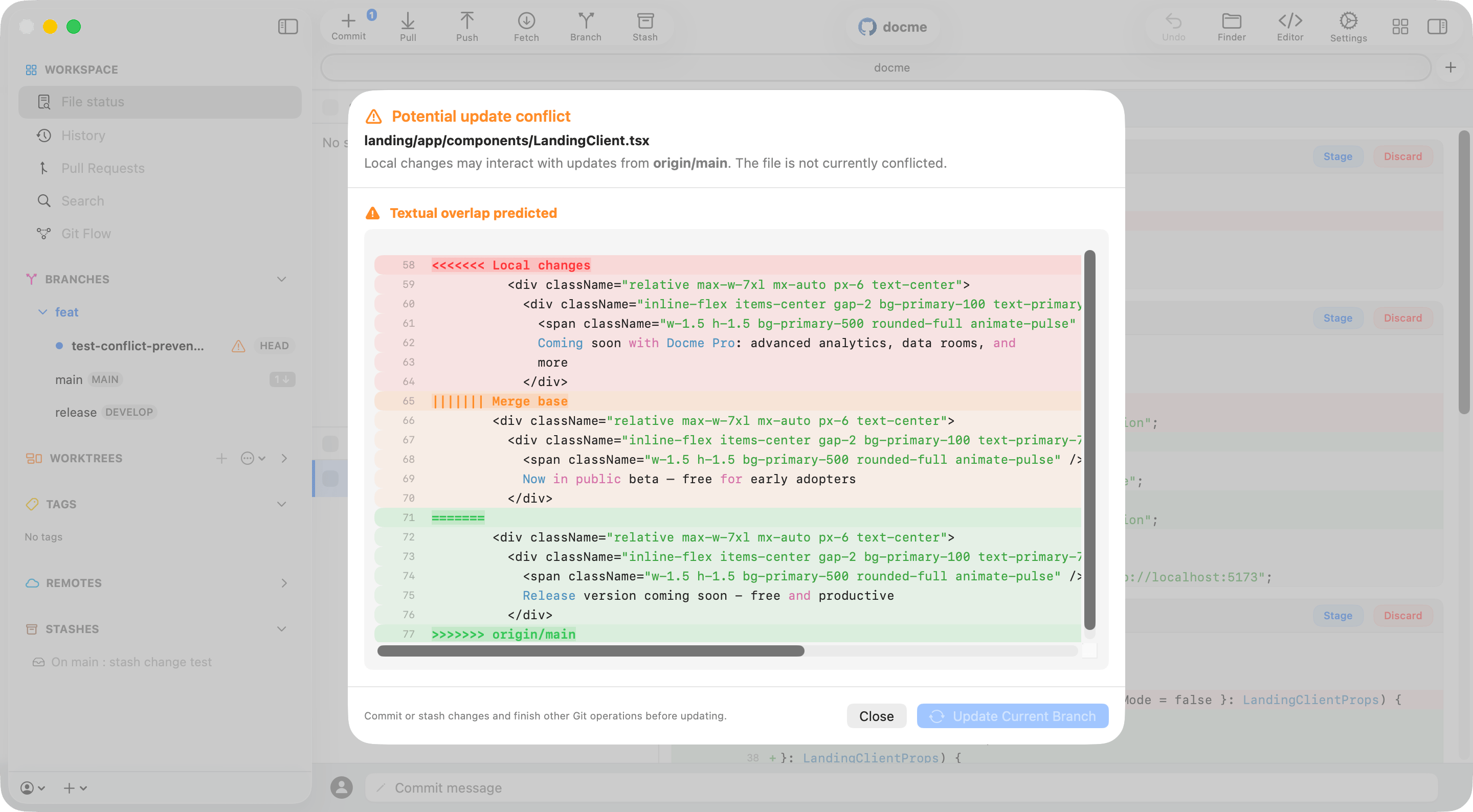
- When you open the file details, Commit+ runs a local three-way preview using your current file, the merge base, and the incoming version. If Git produces textual conflict markers, Commit+ shows the predicted conflict blocks.
1. See that an update is waiting
Commit+ first shows that the current branch has incoming work. If your working copy needs attention, the update action stays unavailable so you can commit or stash before starting the update.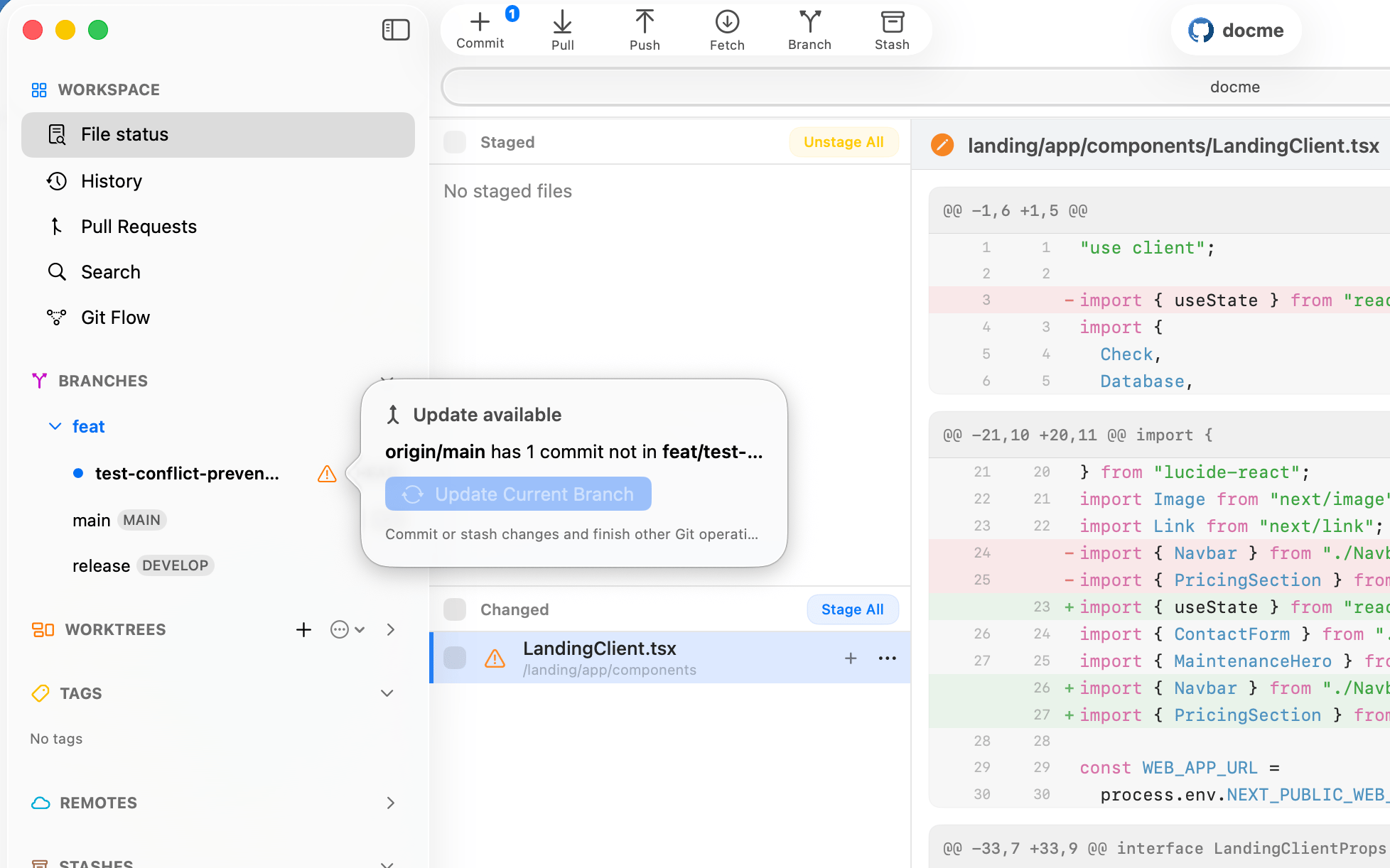
2. Find the file that may need attention
The orange warning appears beside a locally changed file that the incoming branch also touches. The file is not conflicted yet; the marker turns a branch-level update into a precise place to review.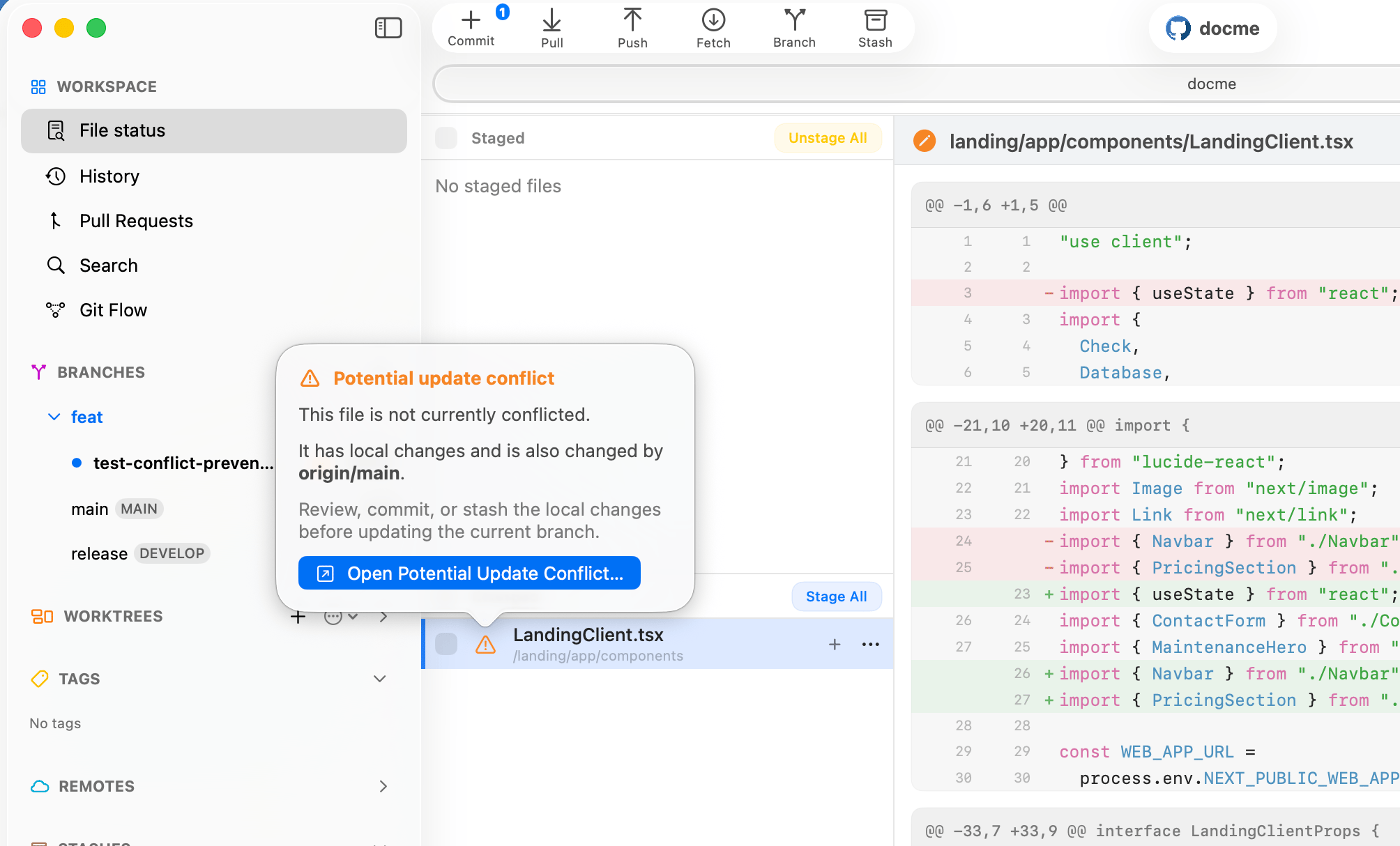
3. Inspect the warning in context
Right-click the file and choose View Potential Conflict Details. You can investigate the warning before updating, switching editors, or losing your place in the working tree.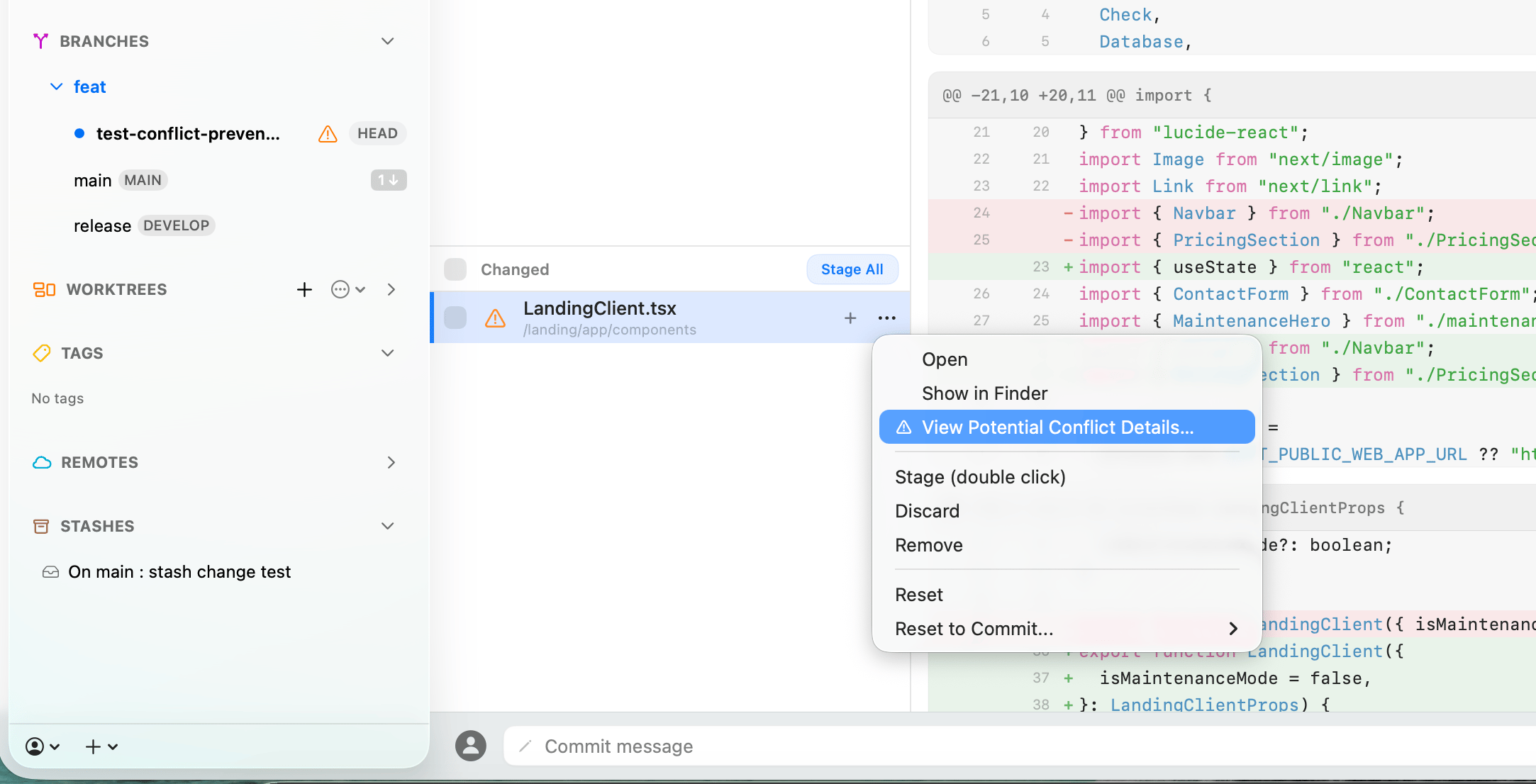
4. Preview the predicted overlap
The detail sheet compares the local content, merge base, and incoming branch version. It only displays predicted textual conflict blocks, so you can see where the two changes meet while your real file remains untouched.